Calendly Free Plan Features: Complete Guide for 2024
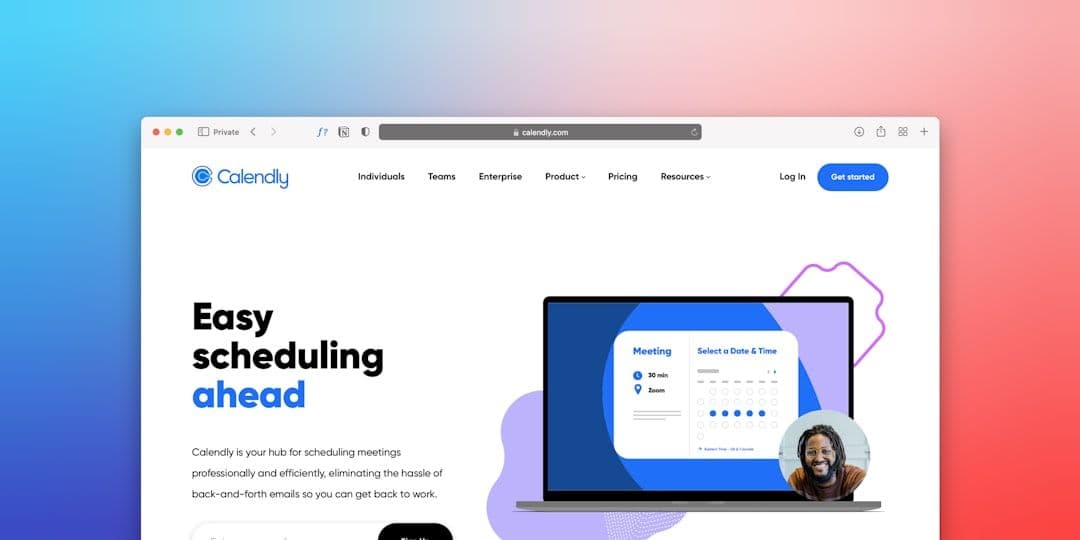
Calendly's free plan offers solid scheduling features that work well for solopreneurs and freelancers just starting out. But understanding exactly what you get—and what you don't—helps you decide if the Calendly free plan features meet your needs or if you should explore alternatives.
This guide breaks down every feature, limitation, and workaround so you can make the most of Calendly's free tier.
What's Included in Calendly's Free Plan
Calendly's free plan gives you the core scheduling functionality that most solo professionals need to get started:
One Event Type: You can create a single meeting type (like "30-minute consultation" or "discovery call"). This covers most basic scheduling needs for freelancers who primarily offer one type of meeting.
Unlimited Bookings: No limit on how many meetings people can schedule with you each month. Whether you book 5 meetings or 50, you won't hit a usage cap.
Calendar Integration: Connect one calendar (Google Calendar, Outlook, or Apple iCloud) to check availability and prevent double-bookings. The integration works both ways—Calendly events appear in your calendar, and your existing events block availability.
Basic Customization: Add your logo, customize colors, and write a personal bio. You can also set your availability hours and buffer times between meetings.
Email Notifications: Automatic confirmation emails and reminders go to both you and your invitees. The emails include basic meeting details and calendar attachments.
Timezone Detection: Calendly automatically detects your invitee's timezone and displays available times accordingly—crucial for remote work and international clients.
Key Limitations of the Free Plan
While Calendly's free tier covers basics, several restrictions might affect your workflow:
Single Event Type Restriction: You can only offer one type of meeting. If you need separate booking pages for discovery calls, strategy sessions, and follow-ups, you'll need multiple event types—which requires a paid plan.
No Group Events: Want to host webinars or group consultations? Free accounts can't create group bookings or collective events.
Limited Integrations: You can connect one calendar, but advanced integrations with CRM tools, payment processors, or project management platforms aren't available.
Basic Branding: While you can add your logo and colors, removing Calendly branding or using a custom domain requires upgrading.
No Payment Collection: Can't collect payments during booking—you'll need to handle invoicing separately.
15-Minute Minimum: Meeting duration starts at 15 minutes. If you need shorter check-ins or longer intensive sessions, your options are limited.
For freelancers managing multiple client calendars, these limitations can create workflow friction. If you're juggling several Google Workspace accounts from different clients, keeping all your calendars synchronized becomes essential for accurate availability.
Advanced Features You'll Miss (Paid Plans Only)
Understanding what's locked behind Calendly's paywall helps you evaluate if upgrading makes sense:
- **Multiple Event Types**: Create different booking pages for various services
- **Team Scheduling**: Round-robin and collective event types for teams
- **Advanced Integrations**: Salesforce, HubSpot, Stripe, PayPal, Zoom
- **Workflow Automation**: Custom confirmation pages and email sequences
- **Analytics and Reporting**: Meeting metrics and booking insights
- **Custom Branding**: Remove Calendly branding and use custom domains
- **SMS Notifications**: Text reminders in addition to email
- **Admin Controls**: User management and security settings
Calendly's paid plans start at $8/month (Essential) and go up to $16/month (Professional) for individual users.
Maximizing Your Free Plan Experience
Even with limitations, you can optimize Calendly's free plan for better results:
Write Compelling Event Descriptions: Since you only get one event type, make the description comprehensive. Explain what the meeting covers, what to prepare, and what outcomes to expect.
Use Buffer Times Strategically: Set 5-10 minute buffers between meetings to avoid back-to-back scheduling stress. This also gives you time to take notes or prepare for the next call.
Optimize Your Availability: Be strategic about when you're bookable. Instead of offering every weekday hour, consider focused availability windows that work best for your energy and client preferences.
Leverage Email Customization: Personalize your confirmation and reminder emails within the free plan's limits. Include meeting agendas, preparation tips, or links to relevant resources.
Create Multiple Calendly Accounts: While not ideal, some freelancers create separate free accounts for different services. Use different email addresses for each account type (like meetings@yourdomain.com and consultations@yourdomain.com).
If you're managing multiple client workspaces, time blocking techniques can help you allocate specific hours for different types of work, making your single event type more versatile.
Best Alternatives to Calendly's Free Plan
Several scheduling tools offer more generous free tiers or different feature sets:
Acuity Scheduling: Free plan allows unlimited appointments and basic customization, though with limited features.
Doodle: Great for group scheduling and finding meeting times, with a solid free tier for basic polls.
Cal.com: Open-source alternative with more customization options and unlimited event types on their free plan.
Microsoft Bookings: Included with Microsoft 365, offering more event types and better integration if you're already in the Microsoft ecosystem.
SimplyBook.me: Free plan supports multiple services and basic online payments.
For a detailed comparison of scheduling alternatives, check out our guide to the best Calendly alternatives designed specifically for freelancers.
Making the Upgrade Decision
Consider upgrading from Calendly's free plan when:
- You need multiple event types for different services
- Client payments during booking would streamline your workflow
- Advanced integrations with your CRM or project tools become essential
- You're booking enough meetings that analytics would provide valuable insights
- Professional branding without Calendly's logo becomes important for your business image
Before upgrading, calculate whether the time savings and additional bookings justify the monthly cost. For many solopreneurs, Calendly's free plan provides sufficient functionality for months or even years.
Getting Started with Calendly Free
Setting up your free Calendly account takes about 10 minutes:
- **Sign Up**: Create your account at calendly.com using your business email
- **Connect Your Calendar**: Link your primary Google Calendar, Outlook, or Apple calendar
- **Set Availability**: Define your working hours and preferred meeting times
- **Create Your Event Type**: Write a clear title and description for your single event type
- **Customize Branding**: Add your logo, choose colors, and write your bio
- **Test Booking**: Use the preview to book a test meeting and verify everything works
- **Share Your Link**: Add your Calendly URL to email signatures, website, and social profiles
Calendly's free plan features provide a solid foundation for basic scheduling needs. While the single event type limitation feels restrictive, creative freelancers find ways to work within these constraints while building their client base.
The key is understanding exactly what you're getting and planning your scheduling strategy accordingly. Whether you stick with the free plan long-term or use it as a stepping stone to paid features, Calendly offers enough functionality to streamline your booking process from day one.