Weekly Time Blocking Template: 5 Free Templates + Setup Guide
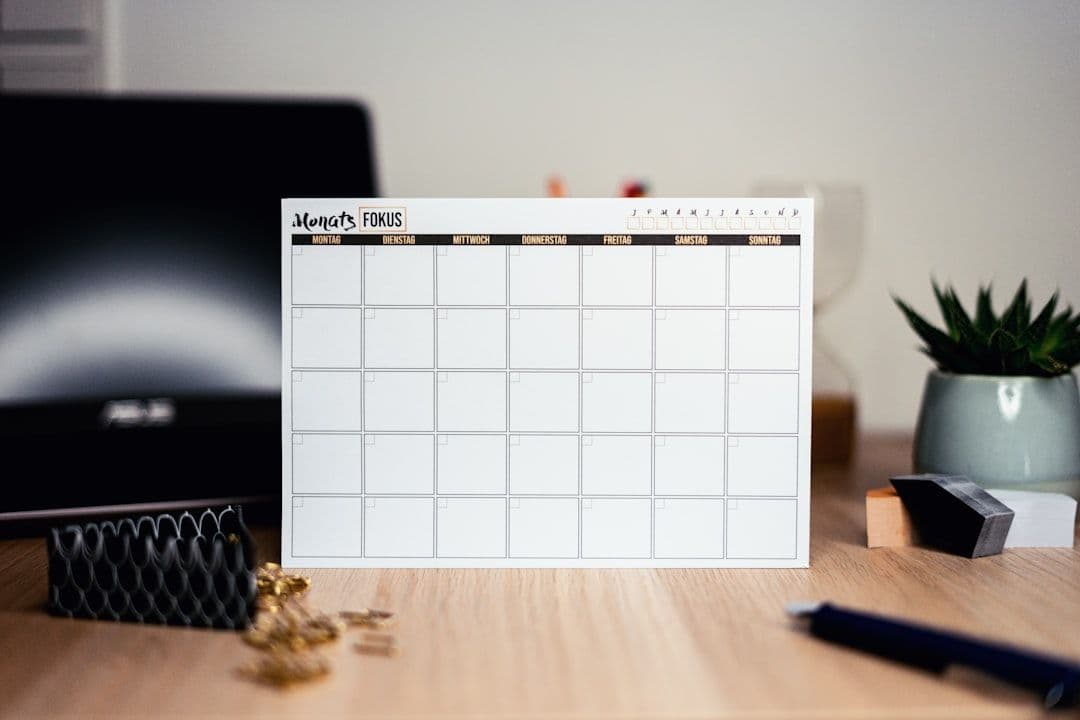
A weekly time blocking template transforms chaotic schedules into organized, productive weeks. Instead of bouncing between random tasks, you'll allocate specific time slots for focused work, meetings, and personal activities.
Freelancers and solopreneurs especially benefit from weekly time blocking templates because they provide structure without the rigidity of traditional 9-to-5 schedules. You can plan entire weeks in advance, batch similar tasks together, and protect your most productive hours for high-value work.
What Makes an Effective Weekly Time Blocking Template
The best weekly time blocking templates share five key characteristics that separate them from basic calendars or to-do lists.
First, they show your entire week at a glance. You need to see Monday through Friday (or Sunday through Saturday) in one view to spot scheduling conflicts and balance your workload properly.
Second, they include time slots small enough for meaningful work blocks. Thirty-minute increments work well for most people, though some prefer 15-minute slots for detailed planning or 60-minute blocks for simplicity.
Third, effective templates separate different types of activities. Use distinct colors or sections for client work, administrative tasks, personal time, and buffer periods. This visual separation helps you maintain work-life boundaries.
Fourth, they accommodate recurring activities without requiring you to recreate them each week. Your weekly template should handle standing meetings, regular workout times, and routine tasks automatically.
Fifth, they integrate with your existing tools. If you live in Google Calendar, your template needs to work seamlessly there. If you juggle multiple client calendars, you'll want a tool that syncs your calendars automatically so you can see everything in one place.
5 Free Weekly Time Blocking Templates You Can Use Today
Template 1: The Freelancer's Focus Block
This template divides your week into three main categories: deep work, client communication, and administrative tasks.
Structure:
- Monday-Wednesday: 4-hour deep work blocks in the morning
- Thursday-Friday: 2-hour client meeting slots
- Daily: 1-hour admin blocks at day's end
- Buffer time: 30 minutes between major blocks
Best for: Freelancers who need long stretches of uninterrupted time for creative or technical work.
Template 2: The Balanced Entrepreneur
This template balances business development, client delivery, and personal growth across your week.
Structure:
- Monday: Business development (networking, sales, marketing)
- Tuesday-Thursday: Client work delivery
- Friday: Learning, planning, and week review
- Daily: 90-minute personal time blocks
Best for: Solopreneurs growing their business while maintaining current client work.
Template 3: The Multi-Client Specialist
Designed for freelancers juggling multiple clients, this template uses color-coded blocks for each client.
Structure:
- Client A: Mondays and Wednesdays (green blocks)
- Client B: Tuesdays and Thursdays (blue blocks)
- Client C: Friday mornings (orange blocks)
- Admin work: Friday afternoons
- Buffer blocks: 15 minutes between client switches
Best for: Service providers working with 3-5 regular clients who need clear boundaries.
Template 4: The Energy-Based Planner
This template aligns your most important work with your natural energy levels throughout the week.
Structure:
- High-energy tasks: Tuesday-Thursday mornings
- Medium-energy tasks: Monday and Friday mornings
- Low-energy tasks: All afternoons
- Creative work: When energy is highest
- Administrative work: When energy is lowest
Best for: People who notice strong patterns in their weekly energy cycles.
Template 5: The Hybrid Worker
Perfect for those balancing freelance work with part-time employment or multiple income streams.
Structure:
- Employment hours: Fixed blocks (e.g., Monday-Wednesday 9-5)
- Freelance work: Remaining time slots
- Transition buffers: 30 minutes between different work types
- Personal time: Protected evening and weekend blocks
Best for: Anyone managing multiple work commitments with different schedules.
How to Set Up Your Weekly Time Blocking Template in Google Calendar
Setting up your weekly time blocking template in Google Calendar takes about 30 minutes but saves hours each week afterward.
Step 1: Create Separate Calendars for Different Work Types
Go to Google Calendar and click the "+" next to "Other calendars." Create separate calendars for:
- Deep work/focus time
- Client meetings
- Administrative tasks
- Personal time
- Buffer/transition periods
Assign each calendar a distinct color so you can instantly identify different types of blocks.
Step 2: Set Up Recurring Time Blocks
For each recurring block in your template, create a new event and set it to repeat weekly. For example:
- "Deep Work Block" every Monday 9 AM - 12 PM
- "Admin Time" every day 4 PM - 5 PM
- "Client Calls" every Tuesday and Thursday 1 PM - 3 PM
This automation means you'll never have to recreate your basic structure.
Step 3: Configure Your Default View
Set Google Calendar to show your preferred weekly view by default. Most people find the "Week" view works best for time blocking, as it shows your entire schedule at once.
Adjust your working hours in Settings > General > Working Hours to match your actual schedule. This helps Google Calendar suggest appropriate meeting times.
Step 4: Add Buffer Time
Create 15-30 minute buffer blocks between different types of work. These prevent you from running late and give your brain time to switch contexts.
Buffer blocks are especially important when switching between different clients or moving from deep work to meetings.
Step 5: Plan for Flexibility
Don't block every single minute. Leave 20-25% of your time unscheduled for urgent requests, unexpected opportunities, or tasks that run longer than expected.
Mark these as "Flex Time" blocks so you remember they're intentionally open.
Advanced Tips for Weekly Time Blocking Success
Once your basic template is working, these advanced strategies help you get even better results.
Batch Similar Tasks Together
Group similar activities into the same time blocks. Schedule all your client calls on the same days, batch your content creation, and handle all administrative tasks in dedicated blocks.
This reduces context switching and helps you get into productive flow states more easily.
Use Theme Days
Assign themes to different days of the week. For example:
- Monday: Planning and preparation
- Tuesday: Client work
- Wednesday: Creative projects
- Thursday: Meetings and calls
- Friday: Learning and improvement
Plan Your Week on Friday Afternoons
Spend 30 minutes each Friday planning the following week. Review your template, adjust blocks based on specific commitments, and identify your top priorities.
This Friday planning session ensures you start Monday with clarity instead of confusion.
Track Your Actual Time Usage
For the first month, track how you actually spend your time versus your template. Note when you deviate and why.
This data helps you refine your template to match your real work patterns instead of your ideal ones.
Create Templates for Different Week Types
Not all weeks are the same. Create variations of your template for:
- Normal weeks
- Weeks with major deadlines
- Weeks when you're traveling
- Lighter weeks with fewer commitments
Saving these as separate Google Calendar views lets you quickly apply the right template.
Common Weekly Time Blocking Mistakes to Avoid
Even with a solid template, these mistakes can derail your time blocking efforts.
Over-scheduling Your Days
The biggest mistake is blocking every minute from morning to night. This leaves no room for unexpected priorities or tasks that run longer than planned.
Aim to schedule 75-80% of your available time, leaving the rest for flexibility.
Making Blocks Too Short
Blocks shorter than 30 minutes rarely accomplish meaningful work. You spend too much time starting and stopping instead of getting into productive flow.
Combine short tasks into longer blocks when possible.
Ignoring Your Natural Rhythms
Don't schedule your most demanding work during your lowest energy times just because those slots are available.
Pay attention to when you naturally feel most alert and creative, then protect those hours for your most important work.
Forgetting About Context Switching
Switching between different types of work or different clients takes mental energy. Your template should account for this with buffer time and logical groupings.
Not Reviewing and Adjusting
Your first template won't be perfect. Plan to review and refine it after two weeks of use, then monthly afterward.
What works in your first month might not work as your business or responsibilities change.
Making Your Weekly Time Blocking Template Work Long-Term
The key to long-term success with weekly time blocking templates is building sustainable habits around them.
Start with your template but stay flexible enough to adapt when life happens. Your template is a guide, not a rigid rule book.
Review your template monthly to ensure it still matches your current priorities and work patterns. As your business grows or changes, your time allocation should evolve too.
If you're managing multiple Google Workspace accounts for different clients, consider using a unified calendar view so you can see all your commitments in one place. This prevents double-booking and helps you maintain consistent time blocking across all your work.
Weekly time blocking templates work because they provide structure while preserving flexibility. Choose one of the five templates above that matches your work style, set it up in Google Calendar using the step-by-step guide, and adjust it based on your actual experience.
Start small with just your core work blocks, then add complexity as the habit solidifies. In a few weeks, you'll wonder how you ever managed your schedule without a proper weekly time blocking template.