Time Blocking Template Google Sheets: 5 Free Templates + Setup
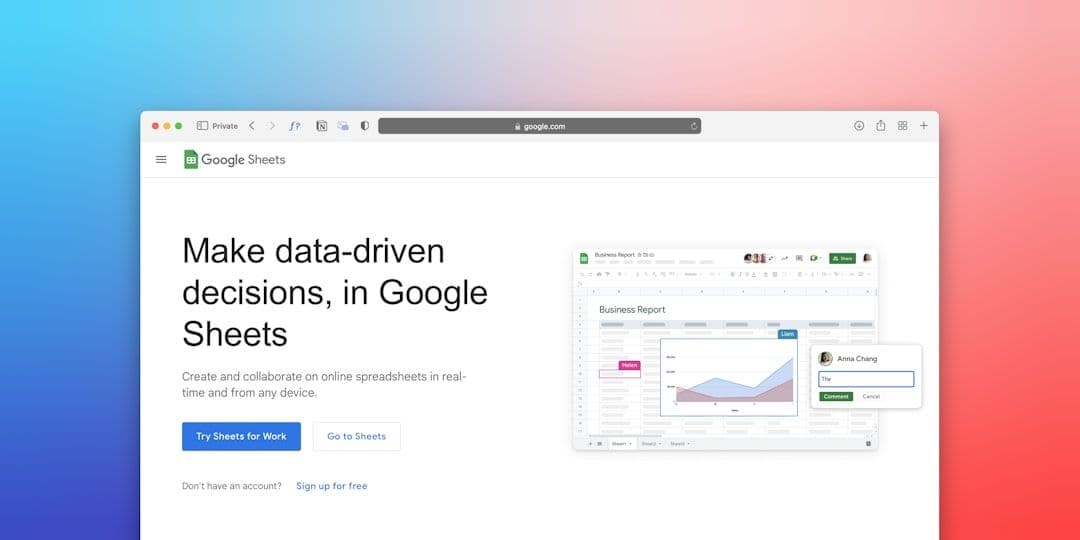
Creating a time blocking template in Google Sheets gives you complete control over your schedule without monthly subscription fees. While calendar apps are great for appointments, a Google Sheets template lets you visualize your entire week, track time estimates versus reality, and customize every detail to match your workflow.
Google Sheets works particularly well for time blocking because you can create formulas to calculate total work hours, color-code different project types, and share templates with team members. Plus, if you're juggling multiple client calendars, a tool that syncs your calendars automatically can feed your actual appointments into your Google Sheets planning template.
Why Use Google Sheets for Time Blocking?
Google Sheets offers unique advantages over traditional calendar apps for time blocking. You can create complex formulas to track billable hours, calculate project profitability, and analyze how you actually spend your time versus your original estimates.
The spreadsheet format makes it easy to see patterns in your schedule. Maybe you consistently underestimate client work but overestimate admin tasks. Or perhaps you're most productive in 90-minute blocks rather than the standard one-hour slots.
Google Sheets also excels at template sharing. Create one master template, then duplicate it for each week or month. You can even share templates with team members or clients who need to see your availability without giving them full calendar access.
Free Time Blocking Templates for Google Sheets
Here are five proven templates you can copy and customize immediately:
Template 1: Basic Weekly Time Blocker
This simple template divides each day into 30-minute slots from 6 AM to 10 PM. Each row represents a time slot, with columns for Monday through Sunday.
Best for: Beginners who want to start time blocking without complexity
Features:
- Color-coded cells for different activity types
- Total hours calculation at bottom of each day
- Notes column for quick reminders
Template 2: Project-Based Time Tracker
Designed for freelancers and consultants who bill by project. This template includes columns for client name, project code, estimated hours, and actual hours worked.
Best for: Service providers who need to track billable time
Features:
- Automatic calculation of billable vs. non-billable hours
- Project profitability tracking
- Client time distribution charts
Template 3: Energy-Based Schedule Planner
This template incorporates your natural energy levels throughout the day. It includes a simple 1-5 energy rating system alongside your time blocks.
Best for: People who want to align tasks with their natural energy rhythms
Features:
- Energy level tracking (1-5 scale)
- Task type recommendations based on energy
- Weekly energy pattern analysis
Template 4: Team Coordination Template
Built for small teams who need to coordinate schedules. Includes multiple person columns and availability indicators.
Best for: Small teams, agencies, or departments
Features:
- Multi-person schedule view
- Meeting availability finder
- Shared project time blocks
Template 5: Detailed Life Management Planner
The most comprehensive template, covering work, personal, health, and learning time blocks. Includes habit tracking and goal progress sections.
Best for: Solopreneurs who want to balance all life areas
Features:
- Work/life balance metrics
- Habit tracking integration
- Monthly and quarterly goal tracking
Step-by-Step Setup Guide
Step 1: Copy the Template
Open your chosen template and click "File" → "Make a copy." Rename it with your preferred naming convention (I recommend "Time Blocks - [Date Range]").
Step 2: Customize Time Slots
Adjust the time slots to match your actual working hours. Most people don't need 6 AM slots, but night owls might need time blocks until midnight.
To modify time slots:
- Select the time column
- Right-click and choose "Insert rows above" or "Delete rows"
- Update the time formatting using the toolbar
Step 3: Set Up Color Coding
Create a consistent color system that makes sense for your work:
- **Deep work**: Dark blue
- **Client meetings**: Green
- **Admin tasks**: Yellow
- **Personal time**: Light gray
- **Break time**: White
Apply colors by selecting cells and using the fill color tool in the toolbar.
Step 4: Add Formulas for Time Tracking
If you're using the project-based template, add these useful formulas:
Total hours per day: =SUMIF(B:B,"Client Work",C:C) (where column B contains task types and column C contains hours)
Weekly billable hours: =SUM(H2:H8) (assuming H column tracks daily billable totals)
Average energy level: =AVERAGE(I2:I8) (if tracking energy levels)
Step 5: Connect with Your Calendar System
Your Google Sheets template works best when integrated with your actual calendar appointments. If you manage multiple client calendars, consider using calendar management tools that consolidate everything into one view, making it easier to plan your time blocks around confirmed meetings.
Advanced Google Sheets Time Blocking Tips
Use Conditional Formatting
Set up conditional formatting to automatically highlight overbooked days or underutilized time slots.
- Select your time block range
- Go to Format → Conditional formatting
- Set conditions like "Greater than 8 hours" to highlight in red
- Set "Less than 4 hours" to highlight in yellow
Create Drop-Down Menus
For consistent data entry, create drop-down menus for recurring tasks:
- Select the cells where you want dropdowns
- Go to Data → Data validation
- Choose "List of items" and enter your options (Client Work, Admin, Marketing, etc.)
Build Dashboard Views
Create a separate sheet tab for high-level analytics:
- Weekly hours by category
- Monthly productivity trends
- Client time distribution
- Goal progress tracking
Use simple charts (Insert → Chart) to visualize your time allocation patterns.
Mobile Access Setup
Download the Google Sheets mobile app and pin your time blocking template to your home screen. This lets you update time blocks on the go and check your schedule during commutes or between meetings.
Integrating with Your Existing Workflow
Your time blocking template should complement, not complicate, your current productivity system. If you already use project management tools like Asana or task managers like Todoist, consider how your Google Sheets template fits into that ecosystem.
Many freelancers find success using Google Sheets for high-level weekly planning, then transferring specific appointments to their calendar app. This gives you the analytical power of spreadsheets for planning and the convenience of calendar notifications for execution.
For those managing multiple client workspaces, the key is maintaining one central planning document while keeping individual client calendars in sync with your actual availability.
The most effective time blocking systems are the ones you'll actually use consistently. Start with a simple template and gradually add complexity as you identify what tracking methods provide the most value for your specific work style.
Common Mistakes to Avoid
Over-engineering the template: Start simple. You can always add features later, but a complex template you never use helps nobody.
Not leaving buffer time: Block 15-30 minutes between different types of work to account for context switching and unexpected delays.
Ignoring energy patterns: Don't schedule demanding creative work during your natural low-energy periods just because those slots are available.
Forgetting to review and adjust: Your time blocking template should evolve as you learn more about your actual work patterns and productivity rhythms.
By starting with one of these proven templates and customizing it to match your specific needs, you'll have a powerful tool for taking control of your schedule and maximizing your productive hours. The key is consistency—use your template for at least two weeks before making major changes, giving yourself time to identify what works and what needs adjustment.
Ready to transform how you manage your time? Choose the template that best fits your current needs, spend 15 minutes customizing it, and start your first week of structured time blocking. Your future self will thank you for the clarity and intentionality this simple system brings to your daily work.