How to Sync Google Calendars Across Multiple Accounts Fast
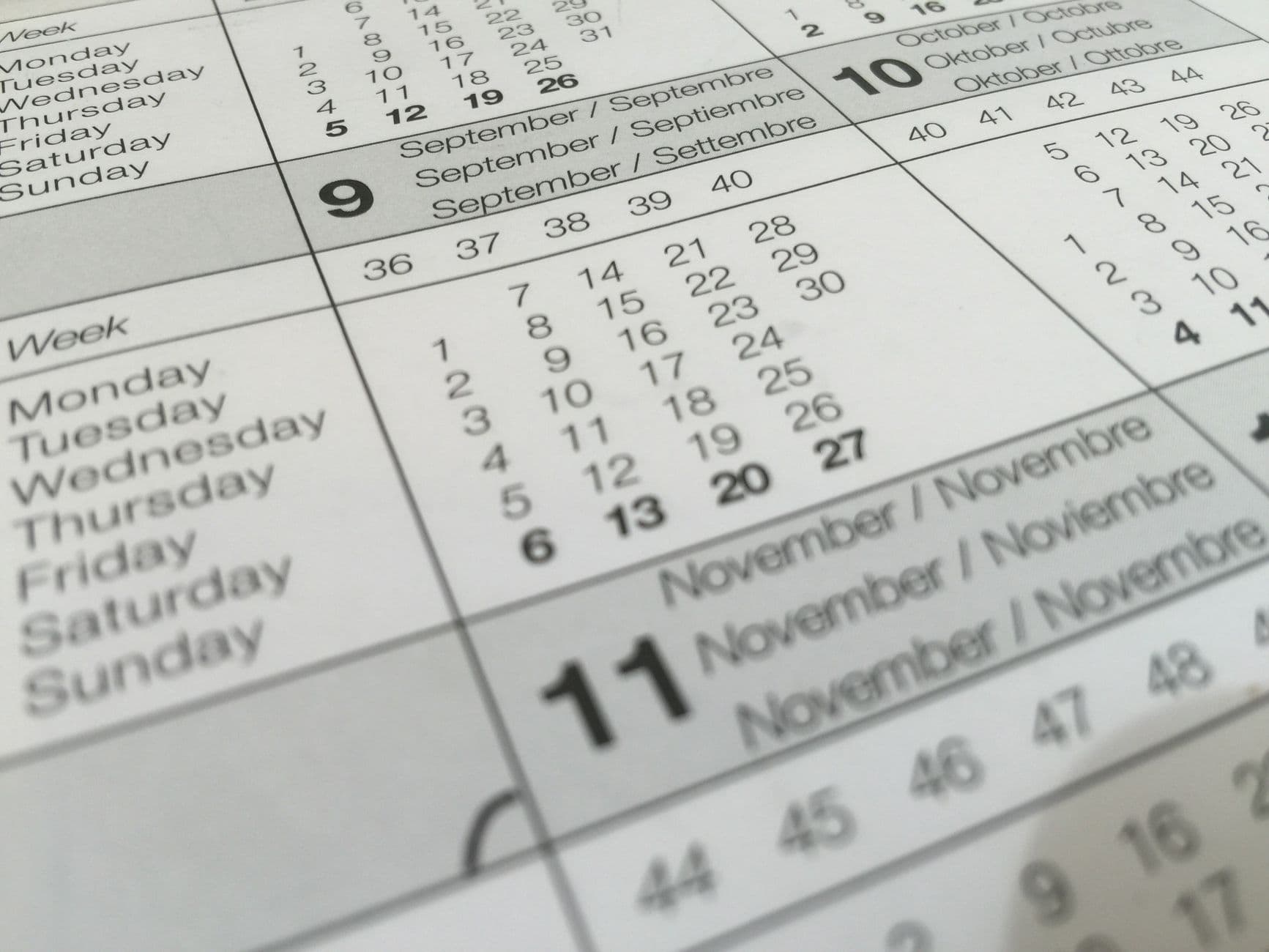
Syncing Google calendars across multiple accounts means automatically copying events between separate Google Workspace accounts so every calendar reflects your real availability. When you manage different client calendars, Calendar A shows a meeting booked while Calendar B still shows you available. Multi-account sync requires automatically copying events between accounts, not just viewing them in one interface.
Why Does Viewing Multiple Calendars Still Cause Double-Booking?
Adding calendars from other accounts to a single view shows all events visually. Booking systems check each account independently, so Calendar B remains open when Calendar A is booked. You need events physically copied to each account so calendar invites, scheduling links, and availability checks see the same blocks everywhere.
Sharing permissions assume a single shared calendar. Freelancers and contractors manage separate client accounts instead. Each client sees only their own workspace, so they have no visibility into your other commitments. Automatic event copying solves this by mirroring your schedule across accounts in real time. CalSync handles this automatically, syncing calendar events every 5 minutes between any number of Google Workspace accounts.
Setting Up Event Sync Across Workspace Accounts
The most reliable approach uses a service that connects to each account via OAuth and copies events as they're created or updated. You control which calendars to sync, whether to copy full event details or just mark time as busy, and whether sync runs one-way or bidirectionally.
Set it up in under 2 minutes. Authorize each account and select which calendars to sync, then adjust privacy and activate. CalSync runs in the background, copying new events and updates every five minutes. Loop prevention ensures an event copied from Calendar A to Calendar B doesn't bounce back to A as a duplicate.
This method works with any Google Workspace account (personal Gmail, paid Workspace, or legacy G Suite) and supports unlimited calendars and merges. You can sync Google Calendar with Apple Calendar or sync Outlook with Google Calendar using similar automatic copy workflows.
Busy-Only Blocking vs. Full Event Details
When syncing across client accounts, you usually don't want sensitive project details visible everywhere. Busy-only blocking copies the time slot without title, description, or attendee information. Other calendars just see the block as "Busy" so invitations can't overlap. Full event detail copying replicates everything, which is useful when you control both accounts and want complete context.
CalSync lets you configure this per calendar pair. Use full details for personal calendars and busy-only for client calendars, so scheduling links respect meetings without exposing details.
What About Google Calendar Sync for Mobile?
The Google Calendar mobile app combines multiple accounts visually. Backend automation handles event copying. You still see separate color-coded calendars for each account, and booking through one account doesn't update the others. Mobile sync relies on the same backend event copying that desktop sync does. Once you've set up automatic copying via CalSync or a similar service, the mobile app reflects those copied events just like the web interface does.
For iPhone users who want unified calendar management, you can share Google Calendar on iPhone or embed Google Calendar in Notion alongside your synced accounts for a single dashboard view.
Frequently Asked Questions
Can I sync Google calendars from different accounts without sharing permissions? Yes. Automatic event copying tools like CalSync connect to each account independently via OAuth, so you don't need to grant sharing permissions between accounts. Events are copied directly from source to destination calendars without relying on Google's built-in sharing.
How often do events sync between accounts? CalSync copies events every 5 minutes, so new meetings and updates appear across accounts within five minutes of being created. Some manual export/import methods require daily refreshes, but automatic services run continuously in the background.
Will syncing create duplicate events? Not if your sync service includes loop prevention. CalSync tracks which events it has copied and won't re-copy them if they appear in a destination calendar, even when running bidirectional sync between two accounts.
Can I sync only specific calendars from each account? Yes. You select exactly which source and destination calendars to sync, so you can sync your work calendar to your personal account without copying every shared team calendar or holiday calendar along with it.
Activate Automatic Calendar Sync
Automatic event copying prevents double-booking across client calendars. CalSync syncs calendar events every 5 minutes between your Google Workspace accounts, with full control over which calendars sync and whether event details stay private. Try it free for 3 days—no long-term contracts, cancel anytime. It's $2.99/mo for unlimited calendars and merges, and you'll be up and running in under 2 minutes.