How to Add Calendar to Google Docs: 3 Simple Methods
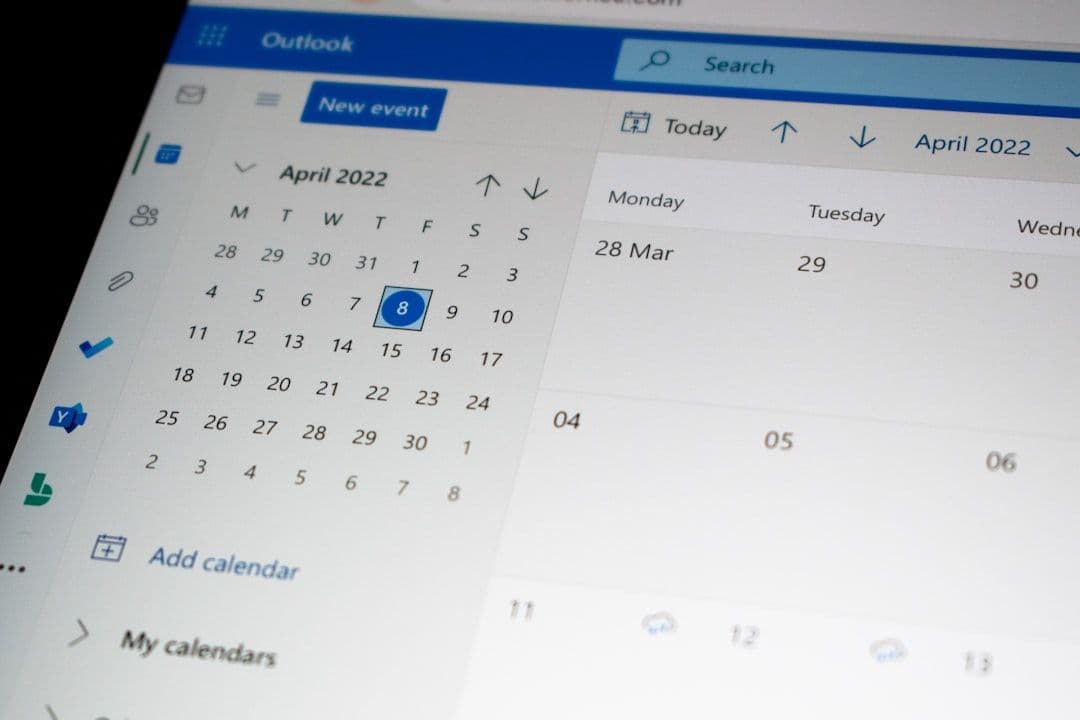
Need to show your schedule, project timeline, or availability directly in a Google Doc? Learning how to add calendar to Google Docs can save you time and make your documents more informative. Whether you're creating a project proposal, meeting agenda, or client report, having calendar information embedded in your document eliminates the back-and-forth of "what's your availability?"
Google Docs doesn't have a built-in calendar widget, but there are three practical methods to get your calendar information into your documents. Each approach has different strengths depending on what you're trying to accomplish.
How Do I Insert a Calendar Table Using Google Docs Templates?
The simplest way to add a calendar to Google Docs is using the built-in table templates. This creates a static calendar you can customize with your events.
Here's how to do it:
1. Open your Google Doc and place your cursor where you want the calendar 2. Click "Insert" in the menu bar 3. Select "Table" and choose "Insert table" 4. Create a 7×6 table (7 columns for days, 6 rows for weeks) 5. Format the first row as headers: Sun, Mon, Tue, Wed, Thu, Fri, Sat 6. Fill in the dates for your desired month 7. Add events directly into the appropriate date cells
This method works well for project timelines, editorial calendars, or showing availability for specific periods. The downside is it's completely manual — you'll need to update it yourself if anything changes.
To make your calendar table more professional, use consistent formatting. Make headers bold, center-align dates, and use different background colors to highlight important events or deadlines.
Can I Add Calendar Screenshots and Images to Google Docs?
Sometimes you need to show exactly what your Google Calendar looks like. Screenshots are perfect for client reports, team updates, or documentation where you want to display your actual calendar view.
The process is straightforward:
1. Open Google Calendar in your browser 2. Navigate to the view you want to capture (day, week, month, or agenda) 3. Take a screenshot using your computer's screenshot tool 4. In your Google Doc, click "Insert" → "Image" → "Upload from computer" 5. Select your screenshot file 6. Resize and position the image as needed
For freelancers managing multiple client calendars, this method can get complicated quickly. If you're juggling several Google Workspace accounts, a tool that syncs your calendars automatically can consolidate everything into one view before you take the screenshot — much cleaner than trying to capture multiple separate calendars.
Pro tip: Use Google Calendar's print view (Ctrl/Cmd + P) to get a cleaner image without browser elements. You can save this as a PDF and then convert specific pages to images if needed.
How Do I Add Live Calendar Links and Embeds?
While you can't embed a fully interactive Google Calendar directly in a Google Doc, you can add smart links that give readers quick access to your calendar information.
Adding Direct Calendar Links
Share a link to your Google Calendar so readers can view it in a new tab:
1. Open Google Calendar 2. Find your calendar in the left sidebar under "My calendars" 3. Click the three dots next to your calendar name 4. Select "Settings and sharing" 5. Scroll to "Access permissions" and make sure "Make available to public" is checked (only if appropriate) 6. Copy the public URL from the "Public address in iCal format" section 7. In your Google Doc, highlight text and use Ctrl/Cmd + K to add the link
This approach works great for sharing your Google Calendar with clients or team members. They can click the link to see your live availability.
Creating Calendar Event Links
For specific events, you can create "Add to Calendar" links:
1. Create your event in Google Calendar 2. Open the event and click "More actions" → "Publish event" 3. Copy the public event URL 4. Add this link to your Google Doc with descriptive text like "Add Project Kickoff Meeting to Your Calendar"
This is particularly useful in project proposals or meeting agendas where you want recipients to easily add important dates to their own calendars.
Advanced Tips for Calendar Integration
Once you've mastered the basic methods, here are some ways to make your calendar integration more effective:
Use consistent formatting across documents. If you're regularly adding calendars to Google Docs, create a template with your preferred table style, fonts, and colors. This saves time and maintains professional consistency.
Consider your audience's needs. Internal team documents might benefit from detailed calendar screenshots, while client-facing proposals might work better with clean, simple calendar tables highlighting only key dates.
Keep static calendars updated. If you're using Method 1 (tables) or Method 2 (screenshots), set reminders to update these when your actual calendar changes. Nothing looks less professional than outdated schedule information.
Link to related calendar content. When appropriate, include links to help readers sync multiple Google Calendar accounts or understand how to configure availability settings in Google Calendar.
For freelancers and consultants who work with multiple clients, managing calendar visibility can get complex. Each client might have their own Google Workspace, making it challenging to show availability across all your commitments. Tools that automatically sync Google Calendar across multiple accounts can simplify this process before you create any calendar content for your documents.
Troubleshooting Common Issues
Running into problems? Here are solutions to the most common calendar integration challenges:
Calendar permissions errors: If clients can't access your calendar links, double-check your sharing settings. You may need to make specific calendars public or share them with individual email addresses.
Image quality problems: Calendar screenshots can look blurry in Google Docs. Try taking higher-resolution screenshots or using Google Calendar's print view for cleaner images.
Table formatting issues: Calendar tables can break when editing on mobile devices. Do your calendar table creation and major formatting on desktop for best results.
Outdated information: Static calendars (tables and screenshots) don't update automatically. Consider adding a "Last updated" note to help readers understand when the information was current.
Making Your Calendar Integration Work for Business
Adding calendars to Google Docs isn't just about showing dates — it's about improving communication and reducing scheduling friction. When you include calendar information directly in your documents, you're making it easier for clients and collaborators to understand timelines, availability, and project schedules.
For project proposals, include a calendar table showing key milestones and delivery dates. In meeting agendas, add calendar screenshots of relevant upcoming deadlines. For client reports, show calendar views of completed work and upcoming priorities.
The key is matching the method to your specific use case. Quick availability updates work great with screenshots, while detailed project timelines benefit from custom calendar tables you can format exactly how you need them.
Ready to streamline how you share calendar information? Start with the method that fits your immediate needs, then experiment with the others as different situations arise. Your clients and colleagues will appreciate having schedule information right where they need it — no more jumping between documents and calendar apps to understand what's happening when.