Google Calendar Reminders: Complete Setup & Management Guide
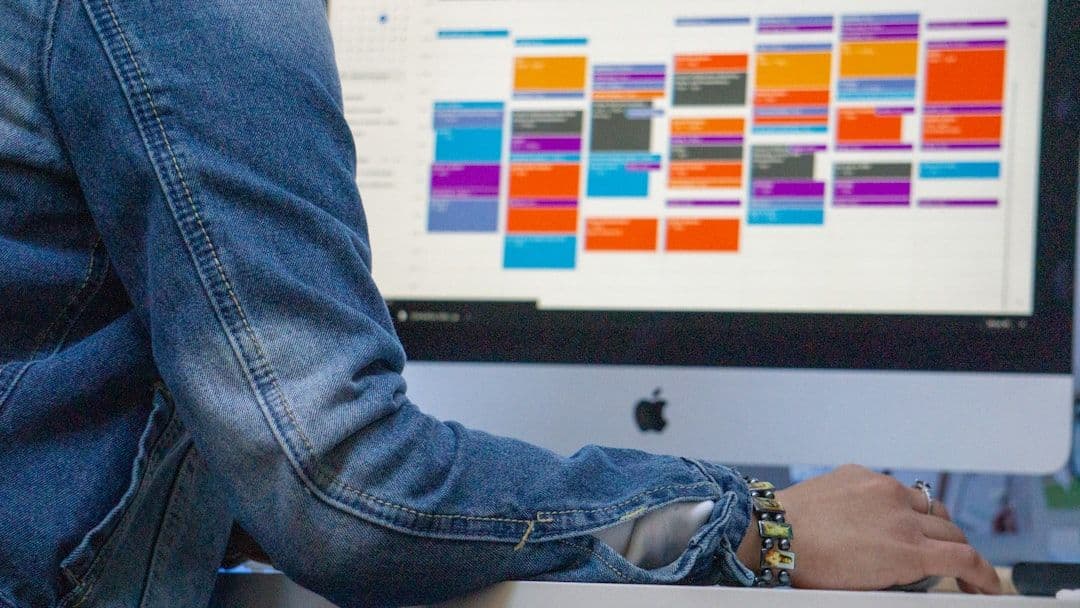
Google Calendar reminders are your digital safety net, ensuring you never miss important deadlines, meetings, or tasks. Whether you're managing client projects, tracking personal appointments, or juggling multiple business commitments, properly configured reminders can transform your productivity and reduce the mental load of remembering everything.
For freelancers managing multiple client accounts, staying on top of reminders across different Google Workspace accounts can be challenging. This comprehensive guide covers everything from basic setup to advanced reminder strategies that work for complex scheduling needs.
How to Set Up Basic Google Calendar Reminders
Setting up reminders in Google Calendar takes just a few clicks, but knowing all your options helps you create a system that actually works for your schedule.
Desktop Setup:
- Open Google Calendar and click on any time slot
- Enter your event title
- Click "More options" to access full event settings
- Scroll to the "Add notification" section
- Choose your reminder timing (10 minutes, 1 hour, 1 day, etc.)
- Select notification type: email or popup
- Click "Save"
Mobile Setup:
- Tap the "+" button in the Google Calendar app
- Enter event details
- Tap "Add notification"
- Set your preferred timing and notification method
- Save the event
The default reminder is typically 10 minutes before an event, but you can customize this for each calendar. Desktop users get popup notifications, while mobile users receive push notifications directly to their phone.
Understanding Different Types of Google Calendar Notifications
Google Calendar offers several notification types, each serving different purposes depending on your workflow and device preferences.
Popup Notifications appear on your computer screen when you're signed into Google Calendar. These work well for desk-based work but won't reach you when you're away from your computer.
Email Notifications send reminders to your Gmail inbox. This option is invaluable for important events since emails persist until you read them, unlike popup notifications that disappear.
Mobile Push Notifications appear on your smartphone or tablet. These are often the most reliable since most people have their phones nearby throughout the day.
SMS Notifications are available in some regions and can be set up through your Google account settings. These work even when you don't have internet access.
For maximum reliability, consider using multiple notification types for critical events. A combination of email and mobile push notifications ensures you'll get the message regardless of what device you're using.
Advanced Reminder Strategies for Multiple Calendars
Managing reminders becomes more complex when you're working with multiple Google Calendar accounts, which is common for freelancers juggling different client workspaces.
If you're switching between multiple Google Workspace accounts throughout the day, you might miss reminders from calendars you're not actively viewing. Tools like CalSync can solve this by consolidating multiple Google Calendars into a single unified view, ensuring you see all your reminders regardless of which account they originated from.
Setting Different Default Reminders:
Each calendar can have its own default reminder settings. To customize these:
- Go to Settings in Google Calendar
- Select the specific calendar from the left sidebar
- Scroll to "Event notifications"
- Set your preferred default timing
- Choose notification types
This is particularly useful when you have different types of calendars. For example, you might want 1-day email reminders for client deadlines but only 15-minute popup reminders for internal team meetings.
Using Multiple Reminders for Important Events:
For critical deadlines or meetings, set multiple reminders at different intervals:
- 1 week before: Email reminder to start preparation
- 1 day before: Email reminder for final preparation
- 1 hour before: Mobile push notification
- 15 minutes before: Popup notification
This creates a funnel of awareness that helps you prepare properly rather than scrambling at the last minute.
Customizing Reminder Timing for Different Event Types
Not all events require the same reminder strategy. Matching your reminder timing to the event type creates a more effective system.
Client Meetings and Calls:
- 1 day before: Email reminder to review notes and agenda
- 30 minutes before: Mobile notification to wrap up current tasks
- 5 minutes before: Final notification to join the call
Project Deadlines:
- 1 week before: Email reminder to assess progress
- 3 days before: Email reminder for final push
- 1 day before: Mobile notification for last-minute review
Personal Appointments:
- 1 hour before: Mobile notification to account for travel time
- 15 minutes before: Final reminder to leave
Recurring Tasks:
- 30 minutes before: Mobile notification for short tasks
- 2 hours before: Email reminder for longer tasks requiring preparation
The key is thinking about what you need to do before each type of event, then working backward to determine optimal reminder timing.
Troubleshooting Common Google Calendar Reminder Issues
Even with perfect setup, reminders sometimes fail to work as expected. Here are the most common issues and their solutions.
Not Receiving Mobile Notifications:
- Check your phone's notification settings for the Google Calendar app
- Ensure the app has permission to send notifications
- Verify you're signed into the correct Google account in the app
- Check if Do Not Disturb mode is blocking notifications
Missing Email Reminders:
- Confirm your Gmail address is correct in Google Calendar settings
- Check your spam folder
- Verify you haven't unsubscribed from Google Calendar notifications
- Ensure your email storage isn't full
Popup Notifications Not Appearing:
- Allow notifications from calendar.google.com in your browser settings
- Check if you have Google Calendar pinned as a browser tab
- Ensure your browser isn't blocking popup notifications
- Try refreshing the Google Calendar page
Reminders for Wrong Time Zone:
This often happens when traveling or working with clients in different time zones. Always verify your Google Calendar time zone settings match your current location or preferred working time zone.
If you're managing multiple client calendars across different time zones, keeping all your calendars synchronized becomes crucial for avoiding confusion about meeting times and deadlines.
Managing Reminder Overload and Notification Fatigue
Too many notifications can be as problematic as too few. The goal is creating a reminder system that helps rather than overwhelms you.
Audit Your Current Reminders:
Review which notifications you actually act on versus which you ignore. If you consistently dismiss certain reminders, they're not serving their purpose and should be adjusted or removed.
Use Contextual Reminders:
Instead of generic "Meeting in 10 minutes" notifications, customize reminder text to include context: "Client presentation with ABC Corp - review slides" gives you immediately actionable information.
Batch Similar Notifications:
Rather than individual reminders for every small task, create single reminders for groups of related activities. For example, instead of separate reminders for each email you need to send, create one "Morning email batch" reminder.
Leverage Quiet Hours:
Set up quiet hours in your notification settings to avoid being interrupted during focused work sessions or personal time. Google Calendar respects these settings for non-critical reminders.
Color-Code by Priority:
Use different calendar colors for different priority levels, making it visually obvious which reminders deserve immediate attention versus those that can wait.
Effective reminder management means being selective about what deserves your attention and when. The most productive professionals often use fewer, more strategic reminders rather than trying to notify themselves about everything.
Google Calendar reminders work best when they're part of a broader organizational system rather than a standalone solution. Consider how your reminders integrate with your task management, project tracking, and communication tools to create a cohesive productivity workflow that actually reduces stress rather than adding to it.