Google Calendar Dark Mode: How to Enable It
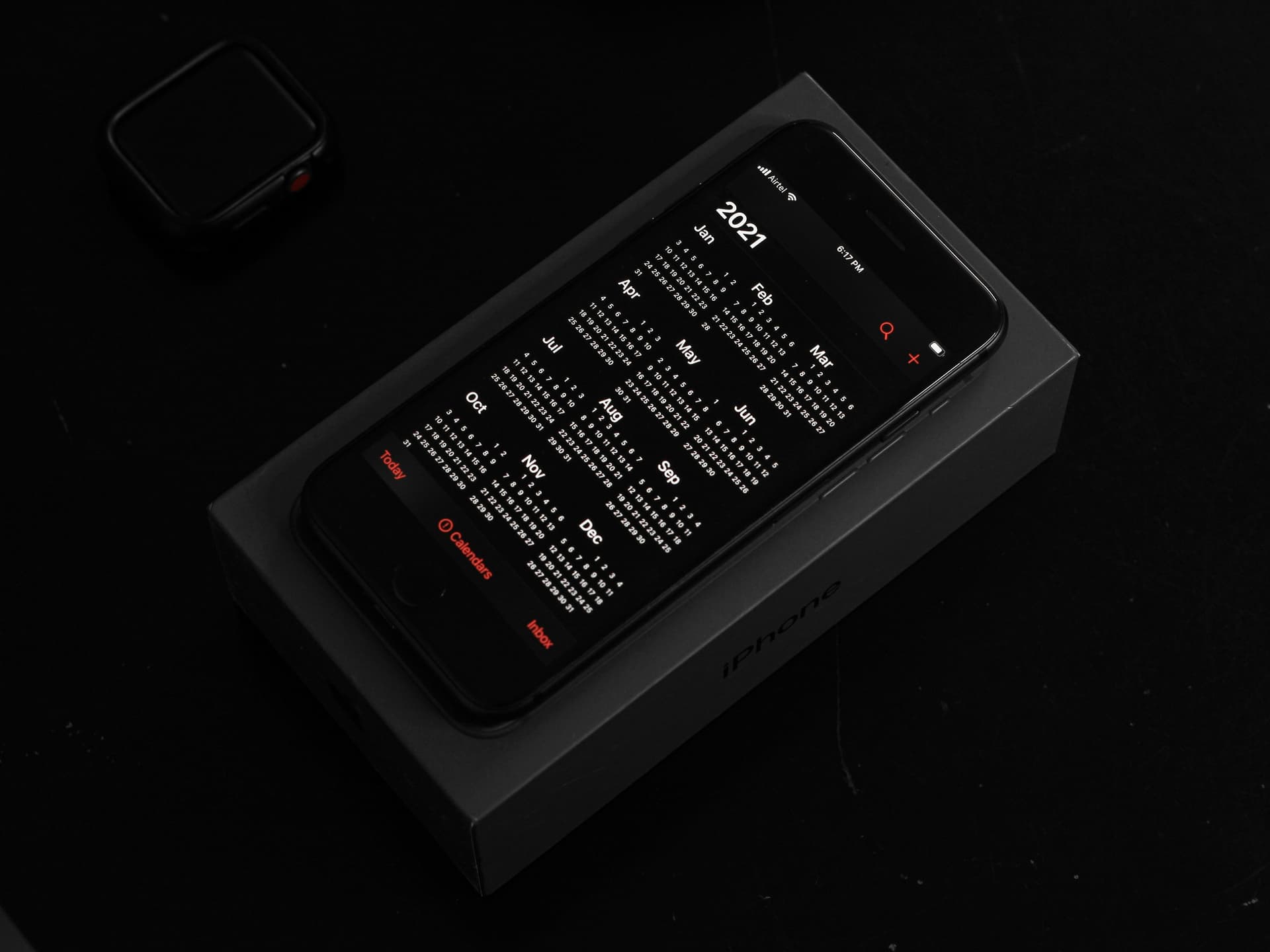
Staring at a bright white Google Calendar all day can strain your eyes, especially during late-night planning sessions or early morning schedule reviews. Google Calendar dark mode reduces eye fatigue, saves battery life on OLED screens, and gives your workspace a sleek, modern look that many professionals prefer.
Whether you're managing multiple client calendars as a freelancer or juggling personal and work schedules, dark mode makes calendar management more comfortable. This guide covers how to enable Google Calendar dark mode across all your devices, plus troubleshooting tips when things don't work as expected.
How to Enable Google Calendar Dark Mode on Desktop
Enabling dark mode in Google Calendar on your computer is straightforward, but the exact steps depend on whether you want system-wide dark mode or just calendar-specific theming.
Method 1: Use Your Browser's Dark Mode
The easiest way to get Google Calendar dark mode is through your browser's built-in dark mode feature:
- **Chrome**: Go to Settings > Appearance > Theme and select "Dark"
- **Firefox**: Go to Settings > General > Website appearance and choose "Dark"
- **Safari**: Go to Safari > Settings > Appearance and select "Dark"
- **Edge**: Go to Settings > Appearance and choose "Dark"
Once enabled, refresh your Google Calendar page. The interface should automatically switch to a dark theme that matches your browser's appearance.
Method 2: System-Level Dark Mode
If you prefer system-wide consistency, enable dark mode at the operating system level:
Windows 10/11:
- Open Settings (Windows key + I)
- Go to Personalization > Colors
- Under "Choose your color," select "Dark"
macOS:
- Open System Preferences/Settings
- Click General
- Select "Dark" under Appearance
Linux (Ubuntu/GNOME):
- Open Settings
- Go to Appearance
- Select "Dark" style
After enabling system dark mode, restart your browser and navigate to Google Calendar. The interface should reflect your system's dark theme preference.
Enabling Google Calendar Dark Mode on Mobile Devices
Mobile dark mode setup varies between Android and iOS, but both platforms offer reliable options for getting Google Calendar dark mode on your phone or tablet.
Android Dark Mode Setup
Method 1: System Dark Mode (Recommended)
- Open Settings on your Android device
- Go to Display (or Display & Brightness)
- Toggle on "Dark theme" or "Dark mode"
- Open the Google Calendar app—it should automatically switch to dark mode
Method 2: App-Specific Settings
- Open the Google Calendar app
- Tap the menu icon (three horizontal lines) in the top-left
- Scroll down and tap "Settings"
- Select "General"
- Tap "Theme" and choose "Dark"
If you manage multiple client calendars, you might find it helpful to use a tool like CalSync to unify all your different Google Workspace accounts into one dark-themed view, eliminating the need to switch between multiple calendar apps.
iOS Dark Mode Setup
System-Wide Dark Mode:
- Open Settings on your iPhone or iPad
- Tap "Display & Brightness"
- Select "Dark" under Appearance
- Open the Google Calendar app—it should follow your system preference
Automatic Dark Mode Scheduling:
You can also set iOS to automatically switch to dark mode at sunset:
- Go to Settings > Display & Brightness
- Tap "Automatic"
- Your device will switch to dark mode based on your location's sunset time
Troubleshooting Google Calendar Dark Mode Issues
Sometimes Google Calendar dark mode doesn't activate properly, even when your system settings are configured correctly. Here are the most common issues and their solutions:
Dark Mode Not Working in Browser
Clear Browser Cache and Cookies:
- Press Ctrl+Shift+Delete (Windows) or Cmd+Shift+Delete (Mac)
- Select "All time" for the time range
- Check "Cached images and files" and "Cookies and other site data"
- Click "Clear data"
- Restart your browser and reload Google Calendar
Check Browser Extensions:
Some browser extensions can interfere with dark mode functionality. Try disabling extensions one by one to identify conflicts, or use incognito/private browsing mode to test if extensions are causing issues.
Update Your Browser:
Outdated browsers may not support Google's latest dark mode implementation. Check for updates and restart your browser after updating.
Mobile App Dark Mode Problems
Force Close and Restart the App:
- Close the Google Calendar app completely
- Wait 10 seconds
- Reopen the app
- Check if dark mode is now active
Update the Google Calendar App:
- Go to your device's app store (Google Play or App Store)
- Search for "Google Calendar"
- Tap "Update" if available
- Restart the app after updating
Check App-Specific Settings:
Some versions of the Google Calendar app have independent dark mode settings that override system preferences. Look for theme options within the app's settings menu.
Advanced Dark Mode Tips for Power Users
If you're managing multiple calendars or need more control over your dark mode experience, these advanced techniques can help optimize your setup.
Browser Extensions for Enhanced Dark Mode
Dark Reader Extension:
This popular browser extension can force dark mode on websites that don't natively support it:
- Install Dark Reader from your browser's extension store
- Navigate to Google Calendar
- Click the Dark Reader icon and enable it for the site
- Customize brightness, contrast, and sepia levels as needed
Custom CSS Styling:
Advanced users can create custom CSS rules to fine-tune Google Calendar's dark mode appearance using browser developer tools or extensions like Stylus.
Managing Multiple Calendar Accounts in Dark Mode
Freelancers and consultants often juggle multiple Google Workspace accounts, each with its own calendar. Switching between accounts can disrupt your dark mode experience and workflow efficiency.
This is where CalSync becomes particularly valuable—it aggregates all your different client calendars into one unified dark-themed interface, so you can maintain visual consistency while viewing events from multiple Google Workspace accounts simultaneously.
Keyboard Shortcuts for Quick Theme Switching
While Google Calendar doesn't have built-in keyboard shortcuts for theme switching, you can create system-level shortcuts:
Windows:
Use Windows + A to open Action Center, then click the dark mode toggle
macOS:
Create a custom keyboard shortcut in System Preferences > Keyboard > Shortcuts to toggle between light and dark modes
Linux:
Most desktop environments support custom keyboard shortcuts for theme switching through their settings panels
Conclusion
Google Calendar dark mode significantly improves the user experience by reducing eye strain and creating a more professional appearance for your scheduling workflow. Whether you prefer browser-level dark mode, system-wide theming, or app-specific settings, the methods outlined above will help you achieve the dark calendar interface you want.
For freelancers managing multiple client calendars, consider trying CalSync to consolidate all your Google Workspace accounts into one clean, dark-themed view. At just $2.99/month, it eliminates the hassle of switching between different calendar accounts while maintaining your preferred dark mode aesthetic.
Remember to keep your browsers and apps updated to ensure optimal dark mode functionality, and don't hesitate to clear your browser cache if you encounter any display issues.